Archives March 2026

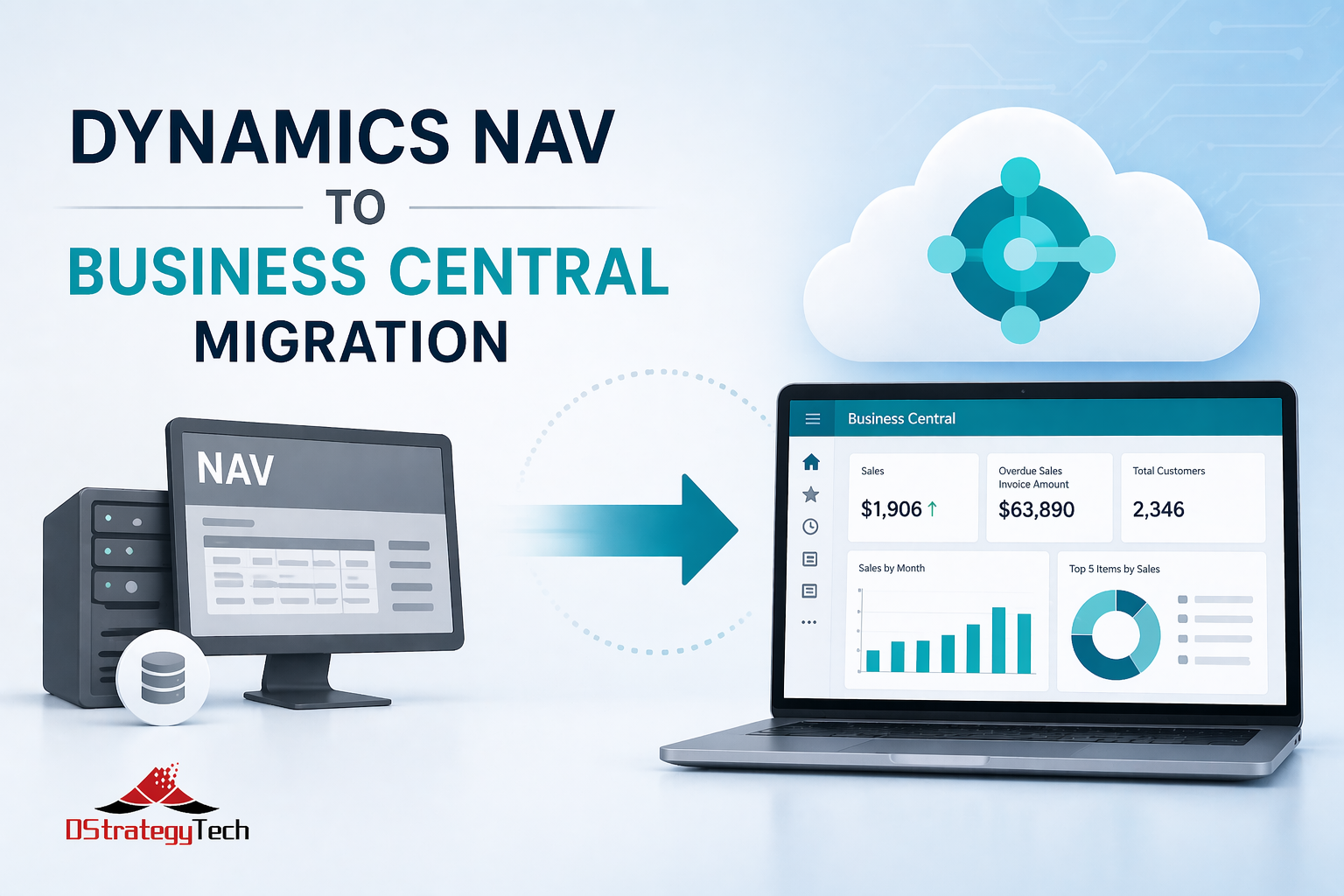
Microsoft Dynamics NAV to Business Central migration guide showing migration steps, timeline, and cost breakdown for SMBs

Microsoft Dynamics NAV to Business Central Migration Guide: What SMBs Need to Know

Microsoft Dynamics NAV to Business Central Migration Guide: What SMBs Need to Know

If you’re still running Microsoft Dynamics NAV, you’re on borrowed time. Microsoft ended mainstream support for Dynamics NAV 2018 in 2023, and extended support ends in 2028. That means no new features, limited security patches, and a shrinking pool of NAV experts.

The smart move is migrating to Microsoft Dynamics 365 Business Central now — before you’re forced to rush it.

Here’s what Dynamics NAV users need to know before making the jump to Business Central.

Why Migrate from Microsoft Dynamics NAV to Business Central?

1. Dynamics NAV Support Is Ending

Extended support for Microsoft Dynamics NAV 2018 ends in 2028. After that, you’re on your own — no patches, no compliance updates, no help from Microsoft.

What this means for NAV users:

  • No security updates after 2028 (you’re exposed to vulnerabilities)
  • No compliance updates (tax tables, regulatory changes)
  • Shrinking pool of Dynamics NAV developers (expensive and hard to find)
  • No new features or improvements (you’re stuck with what you have)

Review Microsoft’s Dynamics NAV 2018 support lifecycle.

2. Dynamics 365 Business Central Is Cloud-First

No more server maintenance, backups, or infrastructure headaches. Microsoft handles it all with Business Central.

Example: A manufacturing client was spending $18,000/year on Microsoft Dynamics NAV server maintenance (hardware, SQL licensing, IT labor). After migrating to Dynamics 365 Business Central cloud, those costs dropped to zero. The Business Central subscription was actually cheaper than maintaining aging NAV infrastructure.

3. Business Central Has Modern Features Dynamics NAV Doesn’t Have

  • Power Platform integration — Automate workflows in Business Central without custom code
  • AI-driven insights — Predictive analytics, anomaly detection, smart recommendations in Dynamics 365
  • Mobile access — Approve invoices, check inventory from your phone using Business Central mobile app
  • Automatic updates — New Business Central features every month, no expensive upgrade projects like NAV required
  • Better Excel integration — Edit Business Central data directly in Excel and publish back
  • Native Teams integration — Collaborate on Dynamics 365 Business Central data without leaving Teams

Explore Microsoft Dynamics 365 Business Central features.

4. Your Dynamics NAV Customizations Are Getting Harder to Maintain

Finding Microsoft Dynamics NAV developers is expensive and getting worse. Most have moved to Business Central or retired. Dynamics 365 Business Central uses modern AL extensions that are easier to support and maintain than NAV’s C/AL code.

Reality check: If your NAV developer retires or leaves, finding a replacement in 2026+ will be difficult and costly. Business Central developers are more readily available.

What’s Different Between Microsoft Dynamics NAV and Business Central?

Licensing

Microsoft Dynamics NAV: Perpetual licenses + annual maintenance
Dynamics 365 Business Central: Subscription-based ($70–$100/user/month)

For most SMBs, Business Central is cheaper when you factor in:

  • No server hardware or replacement costs
  • No SQL Server licensing (required for NAV)
  • No IT maintenance or backup management
  • No expensive upgrade projects every 3-5 years (common with Dynamics NAV)

Example: A 25-user Microsoft Dynamics NAV environment costs roughly $2,500/month when you include server costs, SQL licensing, backups, and IT labor. Dynamics 365 Business Central cloud subscription for 25 users = $1,750–$2,500/month with zero infrastructure overhead.

Deployment

Microsoft Dynamics NAV: On-premises (you manage servers)
Dynamics 365 Business Central: Cloud-first (Microsoft manages infrastructure)

You can run Business Central on-premises, but you lose most of the benefits:

  • No automatic monthly updates
  • Limited Power Platform integration
  • No mobile access to Business Central
  • You still manage servers and backups (just like NAV)

Bottom line: If you’re migrating from Dynamics NAV, go cloud with Business Central. That’s where the value is.

Customizations

Microsoft Dynamics NAV: C/AL code (classic development model)
Dynamics 365 Business Central: AL extensions (modern, containerized, easier to upgrade)

Good news: Most Dynamics NAV customizations can be converted to Business Central AL extensions.
Bad news: It’s not automatic — you’ll need a migration partner to rebuild them.

Example: A distribution company had 23 custom Dynamics NAV reports. During migration to Business Central, they discovered 9 were no longer used, 8 could be replaced with standard BC reports, and only 6 needed to be rebuilt as AL extensions. This saved $12,000 in development costs.

Integrations

Microsoft Dynamics 365 Business Central integrates natively with:

  • Power BI, Power Automate, Power Apps (Microsoft Power Platform)
  • Microsoft 365, Teams, SharePoint
  • Excel (way better than Dynamics NAV’s Excel integration)

If you’ve built custom Microsoft Dynamics NAV integrations (payroll, CRM, eCommerce), they’ll need to be rebuilt using Business Central APIs or Power Platform.

Learn about Microsoft Dynamics 365 Business Central APIs and integrations.

Microsoft Dynamics NAV to Business Central Migration Steps

Step 1: Assessment (2–4 weeks)

Your Dynamics 365 Business Central migration partner should:

  • Audit your Microsoft Dynamics NAV customizations and extensions
  • Identify which NAV customizations to migrate, rebuild, or retire
  • Review integrations (payroll, CRM, eCommerce connected to Dynamics NAV)
  • Estimate migration timeline and cost for moving to Business Central

Step 2: Environment Setup (1–2 weeks)

  • Provision Microsoft Dynamics 365 Business Central cloud tenant
  • Set up user accounts, permissions, security in Business Central
  • Configure integrations (banking, payroll, etc.) for Business Central

Step 3: Data Migration from Dynamics NAV (2–4 weeks)

  • Migrate master data from NAV (customers, vendors, items, GL accounts)
  • Migrate open transactions from Dynamics NAV (AR, AP, inventory)
  • Migrate historical data from NAV (old orders, invoices, journals)

Reality check: Most SMBs only migrate 2–3 years of history from Microsoft Dynamics NAV to Business Central. Older data stays in NAV as read-only.

Step 4: Customization Rebuild (4–8 weeks)

  • Convert Microsoft Dynamics NAV customizations to Business Central AL extensions
  • Rebuild NAV integrations using Dynamics 365 Business Central APIs or Power Platform
  • Test workflows, reports, automations in Business Central

Step 5: Testing & Training (2–4 weeks)

  • User acceptance testing (UAT) in Business Central
  • Train finance, operations, and admin teams on Dynamics 365 Business Central
  • Run parallel (Dynamics NAV + Business Central) for 2–4 weeks

Step 6: Go-Live

  • Final data cutover from Microsoft Dynamics NAV to Business Central
  • Shut down Dynamics NAV
  • Monitor Business Central closely for first 30 days

Total timeline: 3–6 months (depending on Dynamics NAV customizations)

Microsoft Dynamics NAV to Business Central Migration Cost

Typical costs for SMBs (10–50 users) migrating from Dynamics NAV:

Migration Component Cost Range What’s Included
Data migration $5,000–$15,000 Moving master data, open transactions, historical data from NAV to Business Central
Customization rebuild $10,000–$40,000 Converting NAV C/AL code to Business Central AL extensions
Integration rebuild $5,000–$20,000 Rebuilding NAV integrations using Business Central APIs or Power Platform
Training & change management $3,000–$10,000 User training, documentation, adoption support for Business Central
Project management $5,000–$15,000 Coordination, testing, go-live planning for NAV to BC migration
Total Migration Cost $28,000–$100,000 Complete NAV to Business Central migration

Compare This to Your Other Options

  • Microsoft Dynamics NAV server replacement: $20,000–$50,000 (aging infrastructure, still on-prem)
  • Dynamics NAV upgrade to newer version: $30,000–$80,000 (still stuck on NAV platform)
  • Extended NAV support after 2028: Good luck finding it (and it’ll be expensive)

Bottom line: Migrating from Microsoft Dynamics NAV to Business Central costs roughly the same as a major NAV upgrade — but you get a modern, cloud-first Dynamics 365 platform instead of an aging on-prem NAV system.

Common Microsoft Dynamics NAV to Business Central Migration Mistakes

⚠️ Avoid These NAV Migration Pitfalls

1. Underestimating Dynamics NAV Customization Complexity

“We only have a few NAV customizations” usually means 20+ custom reports, workflows, and extensions when you actually audit the system. Budget accordingly for Business Central conversion.

2. Rushing Data Migration from NAV

Bad data in Microsoft Dynamics NAV = bad data in Business Central. Clean up customers, vendors, items, and GL accounts before migrating to Business Central.

3. Skipping User Training on Business Central

Dynamics 365 Business Central looks different than Dynamics NAV. Users need hands-on Business Central training, not just a webinar about NAV differences.

4. Ignoring NAV Integrations

If Microsoft Dynamics NAV talks to payroll, CRM, eCommerce, or banking systems, those integrations need to be rebuilt for Business Central using APIs or Power Platform.

5. DIY NAV to Business Central Migration

DIY Dynamics NAV to Business Central migrations fail 60%+ of the time. Work with a Microsoft partner who’s migrated from NAV to Business Central before (not just a generic BC implementer).

When Should You Migrate from Microsoft Dynamics NAV to Business Central?

Migrate from Dynamics NAV Now If:

  • You’re on Microsoft Dynamics NAV 2016 or older (extended support already ended)
  • You’re planning a Dynamics NAV upgrade (migrate to Business Central instead)
  • Your NAV infrastructure is aging (servers, SQL, hosting need replacement)
  • You want modern features Business Central offers (Power Platform, mobile, AI)
  • You’re struggling to find NAV developers for support and maintenance

Wait on NAV Migration If:

  • You’re on Microsoft Dynamics NAV 2018 and it’s running smoothly (you have until 2028)
  • You’re planning a major business change (acquisition, divestiture, merger)
  • Your budget is tight this year (but start planning your NAV to Business Central migration now)

Bottom line: Don’t wait until 2027 to start planning your Dynamics NAV to Business Central migration. NAV to BC migrations take 3–6 months, and your Microsoft partner’s calendar fills up fast as the 2028 deadline approaches.

Microsoft Dynamics NAV vs. Business Central: Side-by-Side Comparison

Feature Microsoft Dynamics NAV Dynamics 365 Business Central
Deployment On-premises only Cloud-first (on-prem available)
Updates Manual upgrades every 3-5 years Automatic monthly updates
Mobile Access Limited/custom development required Native mobile apps for iOS/Android
Power Platform Not available Native integration (Power BI, Automate, Apps)
AI Features None Predictive analytics, anomaly detection
Support Ends 2028 (NAV 2018) Ongoing Microsoft support
Infrastructure Costs Servers, SQL, IT maintenance required Zero (Microsoft manages everything)

Bottom Line

Microsoft Dynamics NAV to Business Central migration is inevitable. The question is whether you migrate from Dynamics NAV on your terms or in a panic when support ends in 2028.

Start planning your NAV to Business Central migration now:

  • Audit your Microsoft Dynamics NAV customizations and integrations
  • Budget $30,000–$100,000 for NAV to Business Central migration (depending on complexity)
  • Allocate 3–6 months for the Dynamics NAV to Business Central migration project
  • Choose a Microsoft partner who’s migrated from Dynamics NAV to Business Central before (not just a generic BC implementer)

Your Microsoft Dynamics NAV system has served you well. Dynamics 365 Business Central is the modern replacement — and if you plan your NAV migration right, you’ll get more value, less IT overhead, and a platform that grows with you.

Ready to start your Microsoft Dynamics NAV to Business Central migration? DStrategyTech specializes in NAV to BC migrations, Business Central optimization, and ongoing Dynamics 365 support — so your system doesn’t just run, it actually works for your business.

Get a free NAV to Business Central migration assessment →

We’ll review your current Microsoft Dynamics NAV setup, audit customizations, and provide a clear roadmap and cost estimate for migrating to Business Central.

Learn more about our Microsoft Dynamics 365 Business Central services at DStrategyTech Business Central Services.

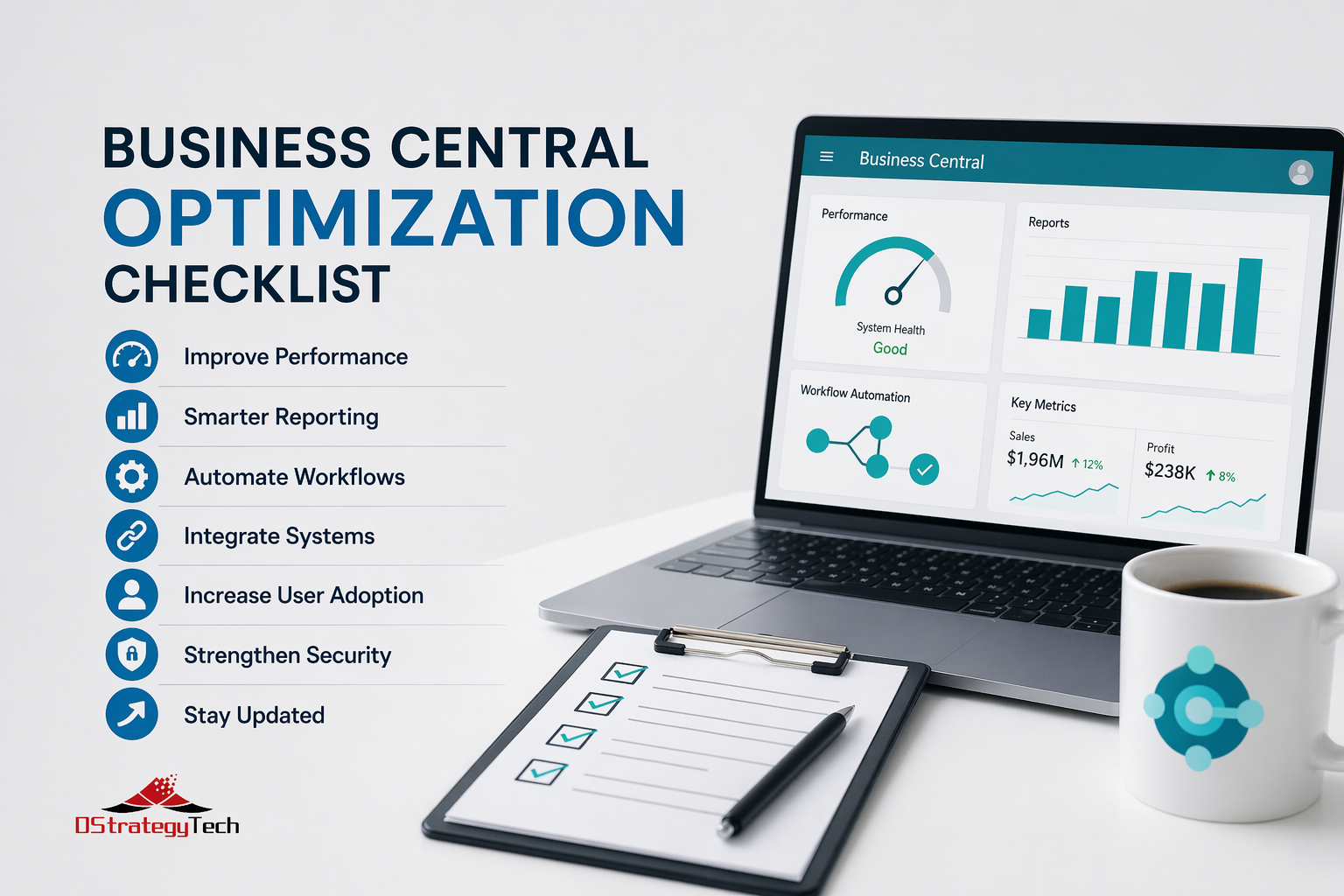
Business Central optimization checklist showing performance improvements, reporting dashboards, and automation workflows for SMBs

Business Central Optimization Checklist for SMBs

Business Central Optimization Checklist for SMBs

Your Business Central system works — but it doesn’t work well. Reports take forever. Users complain it’s slow. You’re pretty sure you’re not getting full value from the platform.

Here’s the issue: most SMBs implement Business Central, use it for basic financials, and never optimize it. You’re paying for a Ferrari but driving it like a minivan.

This checklist shows you exactly what to fix.

1. Performance: Is Business Central Actually Slow?

Before you blame Microsoft, check these common culprits:

Database Size

If you’re over 50GB without archiving old data, performance suffers. BC slows down when it has to search through years of historical transactions every time someone runs a report.

Quick win: Archive old transactions (orders, invoices older than 3 years). Most SMBs see 20–30% performance improvement immediately.

How to do it: Use BC’s built-in Date Compression or export old data to a separate archive database.

Customizations and Extensions

Heavy customizations or poorly written extensions kill speed. Every custom field, report, or workflow adds processing overhead.

Example: A manufacturing client had 47 custom reports built over 5 years. Removing the 31 reports no one used improved page load times by 40%.

Concurrent Users

Are you hitting user limits during peak times? If 30 users are all running month-end reports simultaneously, BC will crawl.

Fix: Stagger report schedules or upgrade your BC plan to support more concurrent sessions.

Cloud vs. On-Prem

On-prem BC is often slower due to infrastructure limits (aging servers, network latency, insufficient RAM).

Reality check: Cloud BC gets automatic performance updates and scales with demand. On-prem doesn’t.

2. Reporting: Are You Actually Using BC Data?

Most SMBs use Excel exports because BC reports are either:

  • Too generic (don’t show what finance actually needs)
  • Too slow (take 5+ minutes to generate)
  • Not automated (manually run every week)

If your finance team exports data to Excel daily, your BC reporting isn’t optimized.

BC Reporting Optimization Checklist

✅ Build custom Power BI dashboards that pull live BC data
✅ Set up scheduled reports (auto-email weekly AR aging, cash flow)
✅ Use Role Centers properly (CFOs and controllers should have tailored views)
✅ Replace manual Excel exports with automated data refresh

Example: A distribution company replaced 12 weekly Excel exports with 3 Power BI dashboards that refresh automatically. Finance team saves 6 hours/week.

Learn more about Power BI integration with Business Central.

3. Automation: What Are You Still Doing Manually?

BC + Power Platform can automate workflows most SMBs do by hand. If your team is doing repetitive tasks weekly, you’re missing automation opportunities.

Common Automation Wins

Manual Process Automated Solution Time Saved
AP approval routing Invoices auto-route based on GL account or amount 4-6 hrs/week
AR collections emails Auto-send payment reminders based on aging 3-5 hrs/week
Inventory reordering Auto-create POs when stock hits reorder point 2-4 hrs/week
Month-end close checklist Power Automate sends reminders and tracks completion 2-3 hrs/month

Ask yourself: What tasks does your team repeat weekly that could run automatically?

Explore Power Automate with Business Central for workflow automation ideas.

4. Integrations: Are You Double-Entering Data?

If you’re manually moving data between BC and other systems, you’re wasting time and introducing errors.

Common Integration Gaps

  • CRM → BC: Sales orders manually re-entered from Dynamics 365 Sales or Salesforce
  • Payroll → BC: Payroll data manually imported each pay period
  • Shopify/eCommerce → BC: Orders manually entered into BC
  • Banking → BC: Bank transactions manually reconciled
  • Shipping → BC: Tracking numbers manually updated from UPS/FedEx

Fix: Use Power Automate, Logic Apps, or pre-built connectors to sync data automatically.

Example: A retail company integrated Shopify with BC using pre-built connectors. Orders now sync automatically, eliminating 15 hours/week of manual data entry.

5. User Adoption: Are People Actually Using BC Correctly?

You’ve invested in Business Central, but if users aren’t using it properly, you’re not getting ROI.

Signs Your Users Aren’t Properly Trained

Warning signs of poor user adoption:

  • They’re still using Excel for tasks BC handles (inventory counts, sales tracking)
  • They call IT for routine tasks (posting journals, running reports)
  • They don’t know keyboard shortcuts or search functionality
  • They’re not using workflows or approval routing
  • They’re afraid to “break something” so they avoid certain features

Quick fix: Run quarterly BC refresher training. Even 30-minute sessions dramatically improve adoption.

Training topics that work:

  • Power user tips (keyboard shortcuts, search, personalization)
  • New features from recent BC updates
  • Department-specific workflows (finance vs. operations vs. sales)
  • Common mistakes and how to avoid them

Reality check: Users trained within the last 6 months are 3x more productive in BC than users who haven’t had training since go-live.

6. Security & Compliance: Are You Leaving the Door Open?

Security isn’t sexy, but it’s critical. Most SMBs set permissions once during implementation and never revisit them.

Security & Compliance Checklist

Check What to Review Frequency
User Permissions Are former employees still active? Do users have excessive permissions they don’t need? Quarterly
Audit Logs Are you tracking who changed what? Critical for SOX compliance and fraud prevention. Always on
Data Retention Are you purging data per GDPR/privacy regulations? Storing unnecessary PII creates risk. Annually
Backup/DR Can you restore BC data if something goes wrong? When was the last restore test? Monthly

Example: During a routine audit, a client discovered 8 former employees still had active BC accounts with full permissions. One was a terminated AP clerk with access to vendor payment processing.

Review Business Central security and permissions best practices.

7. Upgrades & Maintenance: Are You Running Old Versions?

Microsoft releases BC updates monthly. If you’re more than 6 months behind, you’re missing out.

What You’re Missing by Skipping Updates

  • Performance improvements: Microsoft continuously optimizes database queries, page load times, and report generation
  • New features: AI-driven insights, improved mobile experience, better Excel integration
  • Security patches: Vulnerabilities get fixed monthly — old versions are security risks
  • Bug fixes: Known issues get resolved, reducing support tickets

Best practice: Schedule quarterly upgrade reviews with your BC partner. Not every update needs immediate action, but you should know what’s available.

Reality check: Cloud BC handles updates automatically (you just need to test and approve). On-prem BC requires manual upgrades, which is why many companies fall behind.

Stay current with Business Central release plans.

BC Optimization: Before vs. After

Area Before Optimization After Optimization
Performance Reports take 5+ minutes, users complain system is slow Reports run in under 30 seconds, 25% faster page loads
Reporting Finance exports 12 Excel reports weekly (6 hours/week) 3 Power BI dashboards auto-refresh, save 6 hours/week
Automation Manual AP routing, AR reminders, month-end checklists Workflows auto-route approvals, send reminders, track close
Integrations Manual data entry from Shopify, Salesforce, payroll Auto-sync saves 15 hours/week, eliminates errors
User Adoption Users still use Excel, call IT for basic tasks Quarterly training, users confident and self-sufficient

Bottom Line

Business Central optimization isn’t a one-time project — it’s ongoing. The best-performing BC environments:

  • Archive old data regularly (annual cleanup improves performance)
  • Automate repetitive workflows (AP routing, AR collections, inventory reordering)
  • Integrate with other systems (eliminate double data entry)
  • Train users quarterly (adoption drives ROI)
  • Review performance monthly (catch issues before they become problems)

If you’re not doing these things, you’re paying for Business Central but not getting its full value.

Need help optimizing your BC environment? DStrategyTech specializes in Business Central optimization and ongoing improvement — so your system doesn’t just run, it actually works for your business.

Get a free BC optimization assessment →

We’ll review your current setup and show you quick wins that deliver immediate ROI.

Learn more about our Business Central services at DStrategyTech Business Central Services.

Business Central support cost guide showing pricing models and cost factors for SMBs

Business Central Support Cost: What SMBs Should Expect

Business Central Support Cost: What SMBs Should Expect

Most SMBs don’t know what Business Central support actually costs — and that’s a problem. You’ve invested in Dynamics 365 Business Central, but without the right support partner, you’re either overpaying for services you don’t need or flying blind when issues hit.

Here’s what BC support really costs, what impacts pricing, and how to know if you’re getting value.

Why Business Central Support Matters (And What Happens Without It)

Business Central runs your financials, inventory, and operations. When it breaks, your business stops.

Without proper BC support, you’re risking:

  • System downtime during critical periods (month-end close, year-end, audits)
  • Users stuck waiting for answers while productivity tanks
  • Performance degradation that no one knows how to fix
  • Security gaps or compliance issues you don’t discover until an audit
  • Missed automation opportunities — you’re paying for features you’re not using

A real support partner doesn’t just answer tickets — they make sure your system actually works for your business.

What Is Business Central Support?

Business Central support isn’t just troubleshooting. A structured support model typically covers:

  • Proactive system monitoring to catch issues before they disrupt operations
  • User onboarding and training when you add team members
  • Performance optimization to keep BC running fast as you grow
  • Integration support for Power Platform, third-party apps, and custom workflows
  • Update and upgrade management when Microsoft releases monthly updates

For platform capabilities, see Microsoft Learn – Business Central. Product overview at Dynamics 365 Business Central.

Business Central Support Pricing Models

Most BC support partners use one of three pricing structures:

1. Monthly Retainer ($1,500–$5,000/month)

Fixed monthly fee for ongoing support. Typically includes:

  • Unlimited user support tickets (email, phone, portal)
  • Proactive system health checks
  • Monthly optimization reviews
  • Priority response times (2–4 hours for critical issues)

Best for: SMBs with 10–50 users who need consistent, predictable support.

2. Hourly Support ($150–$250/hour)

Pay-as-you-go model. You’re billed for time spent.

Best for: Companies with strong internal IT who only need occasional expert help.

Watch out: Costs can spiral during migrations, integrations, or major issues. A 2-day integration project at $200/hour = $3,200. Do that quarterly and you’re paying retainer-level costs without retainer-level coverage.

3. Hybrid Model (Retainer + Hourly Overages)

Base retainer (e.g., $2,000/month) with additional hours billed separately for projects or heavy support months.

Best for: Growing SMBs with variable support needs (busy during month-end, quiet otherwise).

Pricing Model Comparison

Model Monthly Cost Best For Watch Out For
Monthly Retainer $1,500–$5,000 SMBs with 10–50 users needing consistent support Paying for unused hours if support needs are light
Hourly Support $150–$250/hr Strong internal IT, occasional expert help needed Costs spike during migrations, upgrades, or major issues
Hybrid Model Base + overages Growing SMBs with variable support needs Overage costs can be unpredictable without clear scope

What Impacts Business Central Support Cost?

Several factors drive pricing:

Number of Users

More users = more support tickets. Expect pricing tiers at 10, 25, 50+ users.

Example: A 15-user BC environment might pay $2,200/month. A 40-user environment with the same setup pays $4,500/month.

Customization and Integration Complexity

Heavy customizations, ISV add-ons, or Power Platform automations increase support complexity (and cost).

Example: A manufacturing SMB with custom lot tracking, Power Automate workflows, and Shopify integration may pay $3,800/month. A basic finance-only setup with no integrations costs $1,800/month.

Response Time Requirements

Need 1-hour SLAs for critical issues? That costs more than 24-hour response times.

Reality check: If your month-end close depends on BC running smoothly, a 1-hour SLA is worth the premium. If you can wait 24 hours for non-critical issues, standard SLAs work fine.

Migration or Upgrade Support

If you’re moving from NAV, GP, or AX, expect $5,000–$15,000 in one-time migration support fees on top of your monthly retainer.

Training and Change Management

Ongoing user training or change management support adds $500–$2,000/month depending on scope.

Example: A company onboarding 5 new users per quarter may budget $1,200/month for recurring training sessions.

Internal IT vs. Business Central Support Partner

Internal IT Can Handle:

  • Basic user questions (“How do I post a journal?”)
  • Password resets and user setup
  • Simple configuration changes (adding a new GL account)

BC Support Partner Handles:

  • System performance issues (slow queries, database optimization)
  • Integration troubleshooting (Power Platform, ISVs, APIs)
  • Upgrade planning and execution
  • Custom report development
  • Workflow automation design
  • Security and compliance audits

Bottom line: Unless your internal IT has deep BC expertise (not just general ERP knowledge), you’ll need a partner for anything beyond day-to-day admin tasks.

What Should Be Included in Your BC Support Agreement?

At minimum, your support agreement should cover:

  • Unlimited user support (email, phone, portal — not “10 tickets/month” limits)
  • Proactive system monitoring (not just reactive fixes when things break)
  • Monthly health checks (performance, security, update readiness)
  • Integration support (Power Platform, third-party apps, APIs)
  • Quarterly business reviews (are you getting ROI? What can be improved?)

If your partner isn’t offering these, you’re paying for break-fix support — not business value.

🚩 Red Flags You’re Overpaying for BC Support

Warning signs you’re not getting value:

  • You’re paying a retainer but filing fewer than 2 tickets/month
  • Response times regularly exceed your SLA (and there’s no accountability)
  • No proactive outreach — they only engage when you call
  • No optimization or improvement recommendations (just reactive firefighting)
  • You’re being billed hourly for things that should be included in the retainer
  • Your “support partner” doesn’t know your business or system setup

Reality check: Good BC support should feel invisible. If you’re constantly chasing your partner for answers, you’re not getting value.

How to Know If You’re Getting Value

A high-performing BC support engagement delivers:

  • Fast response times (issues resolved in hours, not days)
  • Proactive recommendations (“We noticed your database is growing fast — let’s archive old data before it impacts performance”)
  • User satisfaction (your team gets answers quickly and clearly)
  • Continuous improvement (quarterly reviews show tangible wins: faster reports, automated workflows, better adoption)
  • Cost predictability (no surprise bills, clear pricing, transparent scope)

If you’re not seeing these outcomes, you’re paying for support — not partnership.

Common BC Support Scenarios and Costs

Scenario 1: Small Distributor (12 users, basic setup)

  • Monthly retainer: $1,800
  • Includes: user support, system monitoring, monthly health checks
  • No custom integrations, minimal training needs

Scenario 2: Mid-Sized Manufacturer (35 users, moderate customization)

  • Monthly retainer: $3,500
  • Includes: everything above + custom lot tracking support, Power Automate workflows, quarterly user training
  • Integration with Shopify for B2B orders

Scenario 3: Professional Services Firm (50 users, heavy Power Platform use)

  • Hybrid model: $4,200/month + hourly overages for project work
  • Includes: full support + advanced Power BI dashboards, custom approval workflows, integration with Salesforce CRM
  • Periodic automation optimization projects billed separately

Bottom Line

Business Central support for SMBs typically ranges from $1,500 to $5,000 per month, depending on user count, customization complexity, and SLA requirements.

The real question isn’t “How much does it cost?” — it’s “What am I getting for that investment?”

Your BC system should run smoothly, users should get fast answers, and you should see continuous improvement — not just firefighting.

Need help evaluating your Business Central support options? DStrategyTech specializes in BC support, optimization, and ongoing improvement — so your system doesn’t just run, it actually works for your business.

Get a free 15-minute BC support audit →

We’ll review your current agreement and show you where you’re overpaying or underserved.

Learn more about our Business Central services at DStrategyTech Business Central Services.