Category Business Central

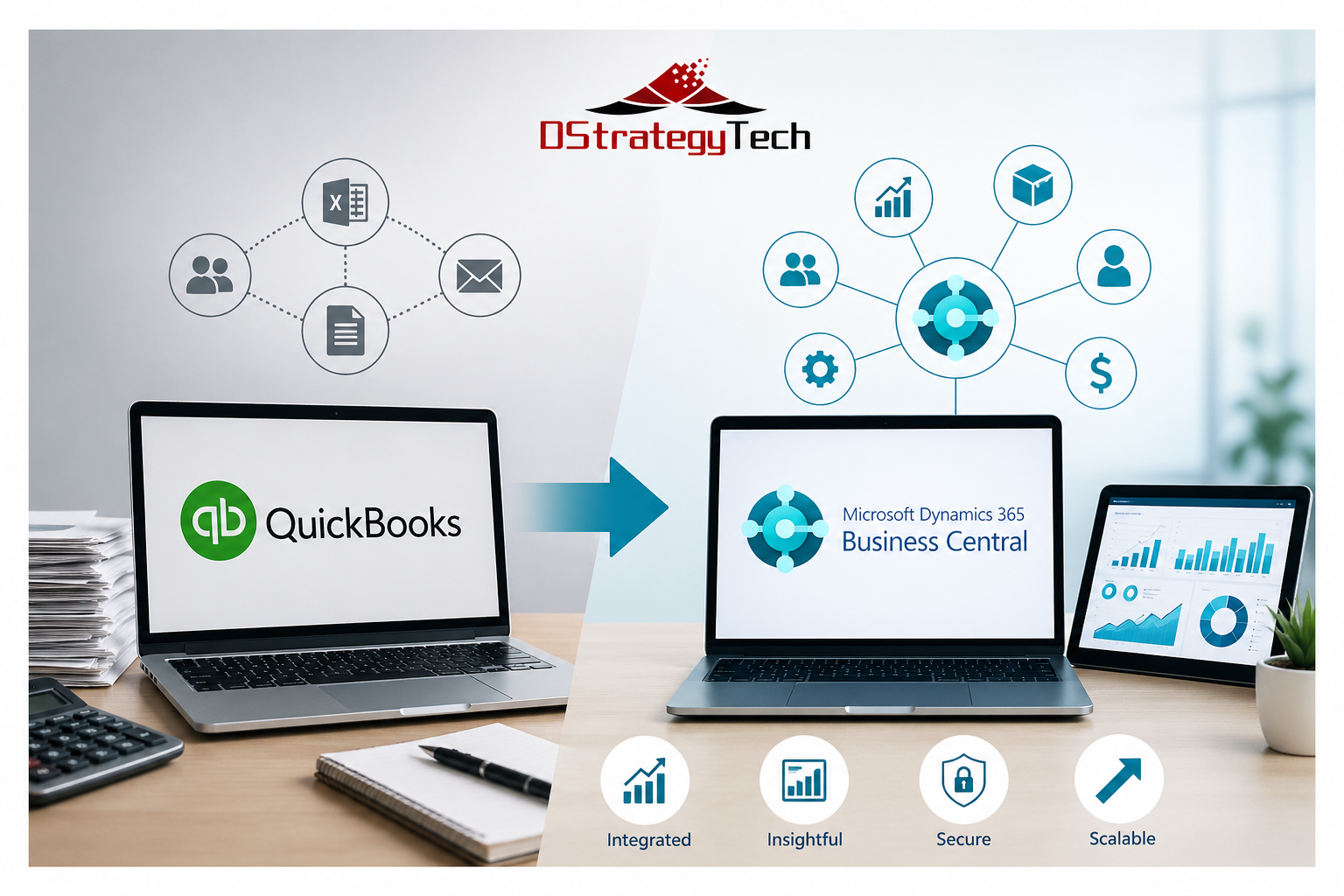
Business Central going beyond QuickBooks with improved reporting, automation, and visibility

Business Central: Going Beyond QuickBooks

Business Central: Going Beyond QuickBooks

For many small and mid-sized businesses, QuickBooks is where financial management begins. It is simple, familiar, and effective in the early stages of growth. Teams can manage invoices, track expenses, and close books without much complexity.

As the business grows, however, the same simplicity can start to create limitations. More processes are introduced, more data needs to be managed, and more people depend on accurate and timely information. At this stage, many organizations begin to look beyond QuickBooks.

Where QuickBooks Starts to Fall Short

QuickBooks is designed primarily for accounting. As operations expand, new requirements begin to surface. Businesses start managing multiple entities, handling inventory, tracking projects, and introducing approval processes.

To support these needs, teams often rely on spreadsheets and disconnected tools. Data moves between systems instead of staying in one place, which creates delays and inconsistencies.

Over time, this leads to limited visibility, slower reporting cycles, and increased dependency on Excel. The system continues to function, but it no longer supports how the business operates.

A More Connected Foundation with Business Central

Microsoft Dynamics 365 Business Central brings financials and operations together into a single platform. Instead of extending QuickBooks with multiple tools, Business Central connects sales, purchasing, inventory, and finance through a unified data model.

For organizations evaluating the transition, Microsoft provides detailed guidance on moving from QuickBooks to Business Central, including data structure, setup, and considerations. View Microsoft guidance on QuickBooks to Business Central .

This creates a more structured environment where processes are standardized and workflows are built into the system. As a result, businesses reduce manual reconciliation and improve consistency across departments.

Key Capabilities of Business Central

Business Central supports financial management across multiple entities, integrates operational workflows, and provides built-in controls for approvals and compliance. This allows organizations to align their system with how they actually operate.

Improving Reporting and Visibility with Power BI

Even after implementing a new system, many organizations still rely on spreadsheets for reporting. This is where Microsoft Power BI becomes important.

Power BI enables centralized dashboards and real-time reporting. Instead of waiting for reports to be prepared, teams can monitor financial and operational performance as it happens.

Benefits of Power BI Integration

With Power BI, organizations gain consistent metrics, improved visibility across functions, and faster access to insights. This supports better decision-making across leadership and operational teams.

Preparing for AI Requires Structured Data

As businesses begin adopting automation and AI, data quality becomes critical. AI tools rely on structured and consistent data to deliver meaningful results.

Business Central provides a foundation for this by organizing data and standardizing processes. This enables practical use cases such as forecasting, automation, and intelligent recommendations.

Security and Control in a Connected System

As systems become more integrated, security becomes a core requirement. Business Central operates within the Microsoft ecosystem and works with tools such as Microsoft Entra and Microsoft Defender.

This provides identity-based access control, role-based permissions, and data protection. Organizations gain better control over who can access information and how data is used across the system.

What Going Beyond QuickBooks Really Means

Going beyond QuickBooks is not simply about changing systems. It reflects a shift in business needs.

Common indicators include heavy reliance on Excel, fragmented data across systems, slow month-end processes, and limited visibility across teams. At this stage, continuing with workarounds becomes less effective than adopting an integrated platform.

About DStrategyTech

DStrategyTech is a Microsoft partner focused on Business Central, data, and automation. The approach centers on helping organizations improve visibility, streamline operations, and build a scalable foundation using Microsoft technologies.

Final Thoughts

QuickBooks continues to serve an important role for early-stage businesses. However, as operations grow, the need expands beyond accounting.

Business Central provides a more structured and scalable foundation for managing operations, improving visibility, and supporting future capabilities such as automation and AI.

Going beyond QuickBooks is not a technical upgrade. It is a step toward running the business with greater clarity, consistency, and control.

Learn More

If your organization is experiencing these challenges, it may be time to evaluate the next step. Contact DStrategyTech to explore how Business Central, Power BI, and automation can support your business.

Business Central system performance issues with slow reports, integration errors, and system alerts on dashboards

Top D365 Business Central Support Issues SMBs Face

Most SMBs running Microsoft Dynamics 365 Business Central encounter the same recurring support issues. These problems slow operations, frustrate users, and drive up support costs.

Here’s what typically goes wrong — and how to address it before it disrupts your business.

Most of these issues require ongoing monitoring and resolution. Learn more about our Business Central support services and how we help prevent recurring system problems.

1. Slow System Performance

Performance degradation is the most common Business Central support issue. Users report slow page loads, reports that take minutes to generate, and system freezes during peak usage.

Common Causes

  • Database bloat: Years of unarchived transactions slow queries
  • Poorly optimized customizations: Inefficient extensions
  • Concurrent user limits: Too many heavy processes
  • Inadequate infrastructure: On-prem limitations

Resolution

Archive historical data, optimize custom code, and consider moving to cloud infrastructure.

2. Integration Failures

Business Central integrations frequently break or stop syncing data.

Resolution

Implement monitoring, alerts, and regular testing after updates.

3. User Permission Issues

Users either lack access or have excessive permissions.

Resolution

Conduct audits, standardize roles, and automate deprovisioning.

Many of these challenges require continuous monitoring and proactive management. This is where structured Business Central support services make a significant difference.

4. Report Generation Problems

Reports fail, return incorrect data, or run slowly.

5. Month-End Close Delays

Close processes take longer or fail due to manual workflows and validation gaps.

6. Data Import Errors

Imports fail due to format mismatches or missing required fields.

7. Customization Update Conflicts

Updates break custom extensions or introduce errors.

8. Mobile App Gaps

Mobile functionality differs from web experience.

9. Email Failures

Invoices and documents fail to send due to configuration issues.

10. Training Gaps

Users rely on support for tasks they should handle independently.

Proactive Support Approach

  • Monthly health checks
  • Sandbox testing
  • Documentation
  • User training
  • Monitoring and alerts

When to Escalate to Partner Support

  • Persistent performance issues
  • Integration failures
  • Custom code problems
  • Security concerns

Bottom Line

Most Business Central issues come from lack of proactive maintenance, poor training, and weak monitoring.

Need help reducing Business Central support issues?

DStrategyTech provides structured, ongoing support focused on performance, reliability, and continuous improvement.

Explore our Business Central support services to see how we help organizations reduce issues and improve system performance.

Get a Business Central health check →

Business Central security best practices guide showing digital lock icon with ERP dashboard interface and security shields on dark blue background

Business Central Security Best Practices Guide


Introduction

Microsoft Dynamics 365 Business Central is more than just an ERP system—it serves as the financial and operational backbone of your business. This centralized platform manages your most critical business functions: financial transactions, vendor payments, customer data, and inventory and operational processes.

Because of this centralization, security cannot be treated as optional. It is foundational to protecting your business operations and maintaining data integrity.

This guide provides practical, actionable steps that small and medium-sized businesses (SMBs) should take to secure Business Central effectively, without unnecessary complexity or over-engineering.


Why Security Matters in Business Central

The majority of security issues in Business Central do not originate from sophisticated external hackers. Instead, they stem from internal vulnerabilities and operational weaknesses.

Common sources of security risk include:

  • Excessive user access – Users granted more permissions than necessary for their roles
  • Weak identity controls – Inadequate authentication and authorization mechanisms
  • Manual processes outside the system – Critical workflows conducted via email or spreadsheets
  • Lack of monitoring – No visibility into user activity or system changes

The consequences extend beyond data breaches. Security failures can result in incorrect financial data, unauthorized transactions, and significant financial exposure that impacts business operations and regulatory compliance.


Core Principle

Security in Business Central follows an identity-first approach. Everything begins with three fundamental questions:

  • Who can access the system?
  • What they can see within the system?
  • What they can do once they have access?

Answering these questions correctly forms the foundation of a secure Business Central environment.


1. Identity and Access Management (Microsoft Entra ID)

Business Central relies on Microsoft Entra ID (formerly Azure AD) for identity and access management. This integration means your identity security directly determines your overall system security.

Best Practices:

  • Enforce Multi-Factor Authentication (MFA) for all users without exception
  • Implement Conditional Access policies to add context-aware security layers:
    • Block sign-ins from risky locations or unrecognized devices
    • Restrict access based on geographic location
    • Require additional verification for sensitive operations
  • Disable legacy authentication protocols that bypass modern security controls

Bottom line: If your identity layer is weak, every other security measure becomes ineffective. Strong identity management is non-negotiable.


2. Role-Based Access Control (RBAC)

Avoid the temptation to grant broad access permissions simply to expedite user setup or resolve access issues quickly. This creates long-term security vulnerabilities.

Best Practices:

  • Assign users to predefined roles rather than granting permissions directly
  • Apply the principle of least privilege:
    • Finance users receive access only to financial modules
    • Operations users access only operational data
    • Sales teams see customer and order information exclusively
  • Conduct regular permission reviews to identify and remove unnecessary access
  • Document role definitions to maintain consistency across the organization

Example Role Structure:

RoleAccess Granted
AccountantGeneral Ledger, Accounts Payable, Accounts Receivable
Sales RepresentativeCustomer records, Sales Orders
Warehouse ManagerInventory and Warehouse operations only

Critical mistake to avoid: Never give users “SUPER” access unless absolutely required for system administration. This role bypasses all security controls.


3. Segregation of Duties (SoD)

One of the most significant financial risks occurs when a single user controls an entire business process from beginning to end. This creates opportunities for fraud and errors that go undetected.

Example of problematic access:

A single user who can:

  • Create new vendors in the system
  • Enter invoices for those vendors
  • Approve payments to those vendors

This consolidation of duties creates an environment where fraudulent transactions can occur without detection.

Best Practices:

  • Separate critical tasks across different users:
    • Vendor creation should be separate from payment approval
    • Invoice entry should be separate from payment processing
    • Financial reporting should be independent from transaction entry
  • Implement approval workflows for all financial transactions
  • Document separation policies clearly and communicate them to all stakeholders

This approach is not just about security—it is essential for audit readiness and regulatory compliance.


4. Approval Workflows

Business Central includes native approval workflow capabilities that provide built-in oversight for critical business processes.

Best Practices:

  • Require approvals for high-risk operations:
    • New vendor creation or changes to existing vendor records
    • All payment transactions
    • Purchase orders exceeding defined dollar thresholds
  • Implement multi-level approval hierarchies for high-value transactions
  • Configure automatic notifications to ensure approvals are not delayed
  • Set clear escalation procedures for overdue approvals

Outcome: These workflows ensure that no critical financial action happens without appropriate oversight and documented approval trails.


5. Data Protection and Environment Security

Business Central operates in Microsoft’s Azure cloud infrastructure, which provides enterprise-grade security. However, you still need to configure and manage security appropriately.

Best Practices:

  • Leverage Microsoft-managed cloud security features provided by Azure
  • Ensure comprehensive data encryption:
    • Data at rest (stored data)
    • Data in transit (data moving between systems)
  • Restrict access to different environments:
    • Maintain strict separation between Production and Sandbox environments
    • Limit production access to authorized personnel only
    • Use sandbox environments for testing and training

Additional Controls:

  • Limit which users can export large volumes of data
  • Monitor and alert on unusual data download patterns
  • Implement data loss prevention policies where appropriate

6. Audit Trails and Logging

When security incidents or data discrepancies occur, you need clear visibility into what happened, when it happened, and who was responsible.

Best Practices:

  • Enable the Change Log feature in Business Central:
    • Track all changes to critical fields (vendors, customers, general ledger accounts)
    • Record who made each change and when
    • Capture both the old and new values
  • Monitor user activity patterns for unusual behavior
  • Retain audit logs according to your regulatory requirements and internal policies
  • Review logs regularly, not just when problems occur

Fundamental principle: If you cannot trace an action back to a specific user and time, you cannot trust the integrity of that data.


7. Backup and Recovery Strategy

While Microsoft provides platform-level backups for Business Central as part of the cloud service, organizations still need a comprehensive recovery strategy.

Best Practices:

  • Understand Microsoft’s backup policies:
    • Backup frequency (typically daily)
    • Retention periods for different backup types
    • Your responsibilities versus Microsoft’s
  • Test restore scenarios periodically to verify backups work as expected
  • Define a documented recovery plan that includes:
    • Clear assignment of responsibilities (who does what)
    • Recovery Time Objectives (RTO) – how fast systems must be restored
    • Recovery Point Objectives (RPO) – acceptable data loss timeframes
    • Communication protocols during recovery operations

Regular testing is essential. An untested backup is just a hope, not a plan.


8. Integration and API Security

Business Central rarely operates in isolation. It typically connects with other business systems to share data and streamline processes.

Common integrations include:

  • Microsoft Power Platform (Power Apps, Power Automate)
  • CRM systems (Dynamics 365 Sales, Salesforce)
  • E-commerce platforms
  • Banking and payment systems
  • Third-party applications

Best Practices:

  • Use secure, authenticated APIs exclusively for all integrations
  • Never hardcode credentials in integration code or configuration files
  • Apply least privilege to integration service accounts—grant only necessary permissions
  • Monitor data flows between systems for anomalies or unauthorized access
  • Document all integrations including data flows, security controls, and responsible parties
  • Review third-party application permissions regularly

Remember: External integrations can become the weakest link in your security chain if not properly managed.


9. Power Platform and Automation Security

If your organization uses Power Automate flows or Power Apps connected to Business Central, these automation tools require their own security considerations.

Best Practices:

  • Control who can create flows and apps through governance policies
  • Use dedicated service accounts for automation rather than personal user accounts
  • Apply the principle of least privilege to service accounts
  • Avoid exposing sensitive data in flow outputs or app displays
  • Audit automation regularly:
    • Review all active flows and apps
    • Identify owners and business purposes
    • Disable or remove unused automation
  • Implement approval processes for deploying production automation

Uncontrolled automation can bypass business rules and create security vulnerabilities.


10. User Training and Awareness

The majority of security failures have human causes rather than technical ones. Technology can only protect your business when users understand and follow security best practices.

Best Practices:

  • Conduct regular security training covering:
    • Phishing awareness and how to identify suspicious emails
    • Proper data handling procedures
    • Appropriate system usage and prohibited activities
    • How to report security concerns
  • Reinforce critical behaviors:
    • “Do not bypass Business Central by conducting business through Excel files and email”
    • “Do not share your credentials with anyone, including IT support”
    • “Report suspicious activity immediately”
  • Make security part of onboarding for all new employees
  • Provide role-specific training that addresses the unique risks each role faces

Creating a security-conscious culture is as important as implementing technical controls.


11. Regular Security Reviews

Security is not a one-time project—it requires ongoing attention and adjustment as your business evolves.

Monthly/Quarterly Security Checks:

  • Review user access rights:
    • Remove access for departed employees immediately
    • Adjust permissions for employees who change roles
    • Identify and investigate accounts with excessive permissions
  • Remove inactive users who no longer need system access
  • Validate role assignments to ensure they still match current job responsibilities
  • Analyze audit logs for unusual patterns or suspicious activity
  • Review integration health and security settings
  • Test key security controls to verify they function as intended

Regular reviews catch security drift before it becomes a serious vulnerability.


12. Align with Microsoft Security Stack

Business Central becomes significantly more secure when integrated with Microsoft’s broader security ecosystem. These tools provide layered defense and enhanced visibility.

Recommended integrations:

  • Microsoft Defender – Provides advanced threat protection across endpoints and cloud services
  • Microsoft Sentinel – Delivers security information and event management (SIEM) with automated monitoring and alerts
  • Microsoft Purview – Enables data classification, compliance monitoring, and data governance

When these tools work together, they create a comprehensive security posture that is greater than the sum of its parts.


Common Mistakes to Avoid

1. Giving Everyone Full Access

Granting broad permissions may seem convenient in the short term and can reduce support requests, but it creates substantial long-term security risks and compliance issues.

2. Ignoring Multi-Factor Authentication

MFA is the single most effective security control you can implement. It prevents the vast majority of account compromise attacks. There is no excuse for not enabling it.

3. Operating Without Approval Processes

Lack of approval workflows leads directly to financial risk and creates audit findings during compliance reviews.

4. Overlooking Integration Security

External applications and APIs can become your weakest security link if not properly secured and monitored.

5. Treating Security as IT-Only

Security is a business responsibility that requires involvement from finance, operations, and leadership—not just the IT department.


Expected Outcomes

When these security best practices are properly implemented, organizations should expect to achieve:

  • Reduced risk of unauthorized transactions and fraudulent activity
  • Stronger financial controls that support business integrity
  • Audit-ready processes that simplify compliance reviews
  • Better visibility into system activity and user behavior
  • Greater confidence in data integrity and accuracy
  • Improved operational efficiency through clearly defined processes
  • Enhanced business resilience through proper backup and recovery capabilities

Final Perspective

Effective security in Business Central is not about locking down every function and making the system difficult to use. Instead, it is about establishing three critical elements:

Controlled access + Visibility + Accountability

When these three pillars are properly implemented, Business Central becomes not just secure—but reliable and trustworthy as the foundation of your business operations.

Security done right enables business agility rather than hindering it.


Next Step

If you want to assess your current Business Central security posture and identify areas for improvement:

👉 Contact us: https://dstrategytech.com/contactus/

Business Central automation and integration dashboard for SMB operations

Business Central Beyond the Basics: Integrating and Automating Business Processes

Growth brings opportunity, but it also brings complexity. Many organizations reach a point where Business Central automation becomes essential to keep processes moving efficiently. What worked earlier starts to feel strained as teams rely more on coordination, manual steps, and disconnected workflows.

If you are already using Microsoft Dynamics 365 Business Central, you likely have a strong operational foundation. If you are evaluating your next system, you are trying to understand what will actually improve how your business runs day to day.

In both cases, the focus should not just be the system. It should be how your processes work.

What SMB Leaders Are Seeing in the Market

Across analyst insights and customer feedback, businesses that get real value from ERP are not just implementing software. They are improving how work flows across the organization.

Independent reviews highlight Business Central for usability and integration within the Microsoft ecosystem.

👉 Gartner Peer Reviews

ROI-focused research also shows measurable business impact when implemented effectively.

👉 Forrester Total Economic Impact Study

  • reduced manual work across finance and operations
  • faster financial close and reporting cycles
  • improved visibility into performance
  • better control over cash flow and decisions

Where Friction Starts to Show

As operations expand, processes become more complex. What used to be simple now involves multiple steps, systems, and teams. That is where friction begins to show.

  • work depends on follow-ups to move forward
  • information exists across systems or formats
  • teams rely on individuals to connect the dots
  • reporting requires time to prepare and validate

These are not failures. They are signals that processes need to evolve.

Why Integration Becomes Essential

Integration connects how work moves across the business. Without it, processes pause between systems. With it, they continue without interruption.

  • data entered once is available where it is needed
  • updates are visible across teams without extra effort
  • dependencies are handled within workflows
  • processes move forward without manual handoffs

Automation That Works in Practice

Automation should simplify work, not complicate it. The most effective automation focuses on everyday activities that consume time but add little value.

  • routine steps happen automatically after key events
  • notifications are triggered based on real conditions
  • recurring tasks run without reminders
  • exceptions are identified early

Why CFOs and Business Owners Are Paying Attention

Finance leaders today are expected to guide the business with timely insight and agility, not just manage numbers.

👉 What Empowers Modern CFOs

  • faster access to accurate financial data
  • better alignment between operations and finance
  • ability to respond quickly to change
  • greater confidence in decision-making

When connected with Microsoft Power BI, visibility improves significantly.

  • data reflects current activity
  • reports update without manual effort
  • teams rely on a single version of truth
  • leaders act without waiting

Where Integration and Automation Deliver Value

Daily Operations

  • multi-step processes move forward without manual handoffs
  • approvals happen within the system
  • status is visible at any point
  • work continues without delays

Team Coordination

  • shared data reduces reliance on individuals
  • fewer interruptions to ask for updates
  • workflows manage dependencies
  • collaboration becomes smoother

Reporting and Visibility

  • reports update automatically
  • metrics remain consistent across the business
  • trends are visible earlier
  • decisions are based on current information

What This Means for the Business

When processes are integrated and automated, the impact is clear across the organization.

  • less time spent coordinating work
  • fewer errors from manual steps
  • faster execution across operations
  • clearer visibility into performance
  • more predictable and scalable processes

Bottom Line

Business Central provides a strong foundation. The real value comes from how well your processes are integrated and automated.

  • work flows without interruption
  • information moves without manual effort
  • teams operate with clarity
  • the business becomes more efficient and agile

Call to Action

If your current processes rely on manual coordination or disconnected steps, there is an opportunity to improve how your business operates.

👉 Contact DStrategyTech

About DStrategyTech

DStrategyTech is a Michigan-based Microsoft Partner helping small and mid-sized businesses integrate and automate their processes using Microsoft technologies, making operations more efficient, structured, and scalable.

Most businesses do not need more tools. They need their processes to work better with the tools they already have.

Manufacturing Analytics in Business Central

Manufacturing teams using Microsoft Dynamics 365 Business Central have access to production and cost data, but many still struggle to turn it into reliable financial insight.

The issue is not data availability. It is how that data is validated and applied during operations.


1. Cost Variances Are Identified Too Late

In many environments, production cost differences are only reviewed after completion.

  • expected vs actual costs are not monitored during production
  • material and labor variances are identified late

This delays corrective action and directly impacts financial accuracy.


2. Capacity and Production Data Are Underutilized

Work center and production data exist, but are not consistently used.

  • underutilized and overburdened resources go unnoticed
  • planning decisions rely on incomplete visibility

Without active monitoring, efficiency opportunities are missed.


3. Financial Reporting Depends on Manual Validation

Even with integrated systems, teams still rely on manual checks.

  • data is exported to Excel for validation
  • inconsistencies are corrected outside the system

This slows reporting and reduces confidence in financial outputs.


🔹 Conclusion

Manufacturing analytics in Business Central provides the necessary data.

The challenge is ensuring that production data is:

  • accurate
  • consistent
  • aligned with financial outcomes

As automation increases, this becomes critical to maintaining trust in financial reporting and operational decisions.


🔹 Get in Touch

If you are using Business Central in a manufacturing environment and want to improve the accuracy and reliability of your production and financial data, connect with us:

Business Central Validation and Control

Business Central in the AI Era: Why Validation and Control Are Becoming Critical

Business Central Validation and Control in the AI Era

As organizations adopt automation and AI in Microsoft Dynamics 365 Business Central, the need for Business Central validation and control is becoming critical. Systems are no longer just recording transactions. They are executing workflows and decisions at scale, which increases both speed and risk.

Without the right controls in place, errors do not just happen — they multiply. This is where validation becomes essential to ensure financial accuracy, data integrity, and operational reliability.

Why Business Central Validation and Control Matters Now

Historically, finance teams reviewed transactions manually. Today, automation handles a significant portion of posting, integrations, and workflows. Without proper Business Central validation and control, small inconsistencies can quickly scale into larger issues.

  • Financial data does not always reconcile cleanly
  • Teams rely on Excel for validation
  • Posting errors surface late during month-end
  • Integrations fall out of sync
  • Automation runs without visibility

Key Areas Where Control Gaps Appear

1. Data Integrity: Can You Trust Your Numbers

Strong Business Central data integrity ensures your financial system remains the single source of truth. In many cases:

  • General ledger and subledgers do not align
  • External integrations introduce mismatches
  • Manual reconciliation happens outside the system

2. Transaction Control: Are Entries Posted Correctly

Most issues come from small inconsistencies, not system failures. Without proper validation:

  • Incorrect dimensions are used
  • Wrong accounts are selected
  • Duplicate or incomplete entries are posted

This is where Business Central validation and control becomes essential to prevent compounding errors.

3. Automation and Integration: Is the System Doing the Right Thing

As automation increases, processes run without direct human review. Data moves continuously between systems, making it harder to detect issues in real time.

Automation improves efficiency, but without validation, it increases risk.

4. Change and Governance: Can You Safely Evolve the System

Every system change introduces uncertainty. Testing is often incomplete, and results in sandbox environments may not match production behavior.

  • Configuration changes behave differently in production
  • Testing is inconsistent
  • Audit preparation becomes reactive

The Shift to Continuous Validation

There is a growing need for continuous validation across Business Central environments. This means answering three key questions at all times:

  • Is the data correct
  • Are transactions behaving as expected
  • Are automated processes producing the right outcomes

This is not traditional testing. This is ongoing control embedded into daily operations.

Learn More About Business Central

For more details on Microsoft Dynamics 365 Business Central, visit:

Start Improving Your Business Central Controls

The first step is identifying inconsistencies, validating key financial relationships, and gaining visibility into automation.

If your Business Central environment is growing but control is not keeping up, it is time to address it.

Schedule a consultation with DStrategyTech

Project management dashboard in Microsoft Business Central showing project performance and resource tracking

How Microsoft Dynamics 365 Business Central Supports Project Management

For project managers and business leaders, the challenge is not starting projects. It is maintaining control as they progress.

Limited visibility into resource allocation, delayed updates, and inconsistent tracking can affect timelines, cost control, and overall outcomes.

Microsoft Dynamics 365 Business Central provides a structured approach to project management by connecting planning, execution, and reporting in a single system.

A System Designed for Project Oversight

From a project manager or sponsor perspective, Business Central enables:

  • Clear definition of project structure and tasks
  • Visibility into resource allocation across projects
  • Real time tracking of work and progress
  • Consistent monitoring of performance against plans
  • Centralized access to project data

This supports better oversight without relying on multiple tools.

Structured Project Setup

Effective execution begins with proper setup.

Business Central supports:

  • Creation of projects with defined scope
  • Breakdown of work into tasks and activities
  • Assignment of resources, including employees and equipment
  • Configuration of time tracking through time sheets

This provides a consistent framework for managing projects.

Resource Planning and Allocation

Resource management is a key control point for project managers.

Business Central allows you to:

  • Assign resources to specific tasks
  • Monitor availability and workload
  • Manage resource costs and pricing
  • Adjust allocations as project needs change

This helps maintain alignment between plans and execution.

Time Tracking and Work Visibility

Accurate tracking of work performed is essential.

With integrated time sheets, Business Central enables:

  • Recording of employee hours against project tasks
  • Alignment between planned and actual work
  • Automatic updates to project data
  • Reduced reliance on external tracking tools

This improves the reliability of project data.

Monitoring Progress and Performance

From a leadership perspective, visibility into project status is critical.

Business Central supports:

  • Tracking progress against plans
  • Comparing planned and actual usage
  • Reviewing resource utilization
  • Identifying variances early

This enables timely decision making.

Project Analytics and Reporting

For project sponsors and leadership teams, reporting is essential.

With Power BI integration, Business Central provides:

  • Project KPIs and dashboards
  • Cross project performance visibility
  • Trend analysis and issue identification
  • Data to support planning and forecasting

Managing Ongoing Project Activities

During execution, Business Central supports:

  • Recording resource and material usage
  • Managing project related purchases
  • Maintaining up to date project records
  • Ensuring data consistency

This reduces manual effort and improves data accuracy.

Alignment with Financial Outcomes

Although focused on project management, Business Central maintains financial alignment.

  • Tracking costs as work occurs
  • Monitoring work in process
  • Maintaining accurate financial records
  • Supporting invoicing based on progress

Limitations to Consider

While Business Central provides solid project management capabilities, there are practical limitations to be aware of.

  • Not a full scale project management tool: It does not replace tools like Microsoft Project for advanced scheduling, dependencies, or complex planning
  • Limited resource forecasting: Long term capacity planning may require additional tools or customization
  • Basic task management: It supports structure but not detailed collaboration workflows
  • Reporting depends on setup: Meaningful insights typically require Power BI or additional configuration
  • User adoption is critical: Time tracking and data accuracy depend on consistent usage
  • Customization may be required: More complex environments often need extensions or integration with other tools

Understanding these limitations helps set realistic expectations.

What Should You Do Next?

If projects are being managed partially outside Business Central, it may indicate gaps in configuration or usage.

To evaluate your current setup, start with:

  • Business Central Optimization Checklist for SMBs
  • Power BI for Business Central Reporting

These resources provide guidance on improving visibility and control.

For additional support:

https://dstrategytech.com/contactus/

Bottom Line

For project managers and business leaders, Business Central provides a structured and centralized approach to managing projects.

It is most effective when supported by the right setup, processes, and complementary tools within the Microsoft ecosystem.

Microsoft Dynamics NAV to Business Central migration guide showing migration steps, timeline, and cost breakdown for SMBs

Microsoft Dynamics NAV to Business Central Migration Guide: What SMBs Need to Know

Microsoft Dynamics NAV to Business Central Migration Guide: What SMBs Need to Know

If you’re still running Microsoft Dynamics NAV, you’re on borrowed time. Microsoft ended mainstream support for Dynamics NAV 2018 in 2023, and extended support ends in 2028. That means no new features, limited security patches, and a shrinking pool of NAV experts.

The smart move is migrating to Microsoft Dynamics 365 Business Central now — before you’re forced to rush it.

Here’s what Dynamics NAV users need to know before making the jump to Business Central.

Why Migrate from Microsoft Dynamics NAV to Business Central?

1. Dynamics NAV Support Is Ending

Extended support for Microsoft Dynamics NAV 2018 ends in 2028. After that, you’re on your own — no patches, no compliance updates, no help from Microsoft.

What this means for NAV users:

  • No security updates after 2028 (you’re exposed to vulnerabilities)
  • No compliance updates (tax tables, regulatory changes)
  • Shrinking pool of Dynamics NAV developers (expensive and hard to find)
  • No new features or improvements (you’re stuck with what you have)

Review Microsoft’s Dynamics NAV 2018 support lifecycle.

2. Dynamics 365 Business Central Is Cloud-First

No more server maintenance, backups, or infrastructure headaches. Microsoft handles it all with Business Central.

Example: A manufacturing client was spending $18,000/year on Microsoft Dynamics NAV server maintenance (hardware, SQL licensing, IT labor). After migrating to Dynamics 365 Business Central cloud, those costs dropped to zero. The Business Central subscription was actually cheaper than maintaining aging NAV infrastructure.

3. Business Central Has Modern Features Dynamics NAV Doesn’t Have

  • Power Platform integration — Automate workflows in Business Central without custom code
  • AI-driven insights — Predictive analytics, anomaly detection, smart recommendations in Dynamics 365
  • Mobile access — Approve invoices, check inventory from your phone using Business Central mobile app
  • Automatic updates — New Business Central features every month, no expensive upgrade projects like NAV required
  • Better Excel integration — Edit Business Central data directly in Excel and publish back
  • Native Teams integration — Collaborate on Dynamics 365 Business Central data without leaving Teams

Explore Microsoft Dynamics 365 Business Central features.

4. Your Dynamics NAV Customizations Are Getting Harder to Maintain

Finding Microsoft Dynamics NAV developers is expensive and getting worse. Most have moved to Business Central or retired. Dynamics 365 Business Central uses modern AL extensions that are easier to support and maintain than NAV’s C/AL code.

Reality check: If your NAV developer retires or leaves, finding a replacement in 2026+ will be difficult and costly. Business Central developers are more readily available.

What’s Different Between Microsoft Dynamics NAV and Business Central?

Licensing

Microsoft Dynamics NAV: Perpetual licenses + annual maintenance
Dynamics 365 Business Central: Subscription-based ($70–$100/user/month)

For most SMBs, Business Central is cheaper when you factor in:

  • No server hardware or replacement costs
  • No SQL Server licensing (required for NAV)
  • No IT maintenance or backup management
  • No expensive upgrade projects every 3-5 years (common with Dynamics NAV)

Example: A 25-user Microsoft Dynamics NAV environment costs roughly $2,500/month when you include server costs, SQL licensing, backups, and IT labor. Dynamics 365 Business Central cloud subscription for 25 users = $1,750–$2,500/month with zero infrastructure overhead.

Deployment

Microsoft Dynamics NAV: On-premises (you manage servers)
Dynamics 365 Business Central: Cloud-first (Microsoft manages infrastructure)

You can run Business Central on-premises, but you lose most of the benefits:

  • No automatic monthly updates
  • Limited Power Platform integration
  • No mobile access to Business Central
  • You still manage servers and backups (just like NAV)

Bottom line: If you’re migrating from Dynamics NAV, go cloud with Business Central. That’s where the value is.

Customizations

Microsoft Dynamics NAV: C/AL code (classic development model)
Dynamics 365 Business Central: AL extensions (modern, containerized, easier to upgrade)

Good news: Most Dynamics NAV customizations can be converted to Business Central AL extensions.
Bad news: It’s not automatic — you’ll need a migration partner to rebuild them.

Example: A distribution company had 23 custom Dynamics NAV reports. During migration to Business Central, they discovered 9 were no longer used, 8 could be replaced with standard BC reports, and only 6 needed to be rebuilt as AL extensions. This saved $12,000 in development costs.

Integrations

Microsoft Dynamics 365 Business Central integrates natively with:

  • Power BI, Power Automate, Power Apps (Microsoft Power Platform)
  • Microsoft 365, Teams, SharePoint
  • Excel (way better than Dynamics NAV’s Excel integration)

If you’ve built custom Microsoft Dynamics NAV integrations (payroll, CRM, eCommerce), they’ll need to be rebuilt using Business Central APIs or Power Platform.

Learn about Microsoft Dynamics 365 Business Central APIs and integrations.

Microsoft Dynamics NAV to Business Central Migration Steps

Step 1: Assessment (2–4 weeks)

Your Dynamics 365 Business Central migration partner should:

  • Audit your Microsoft Dynamics NAV customizations and extensions
  • Identify which NAV customizations to migrate, rebuild, or retire
  • Review integrations (payroll, CRM, eCommerce connected to Dynamics NAV)
  • Estimate migration timeline and cost for moving to Business Central

Step 2: Environment Setup (1–2 weeks)

  • Provision Microsoft Dynamics 365 Business Central cloud tenant
  • Set up user accounts, permissions, security in Business Central
  • Configure integrations (banking, payroll, etc.) for Business Central

Step 3: Data Migration from Dynamics NAV (2–4 weeks)

  • Migrate master data from NAV (customers, vendors, items, GL accounts)
  • Migrate open transactions from Dynamics NAV (AR, AP, inventory)
  • Migrate historical data from NAV (old orders, invoices, journals)

Reality check: Most SMBs only migrate 2–3 years of history from Microsoft Dynamics NAV to Business Central. Older data stays in NAV as read-only.

Step 4: Customization Rebuild (4–8 weeks)

  • Convert Microsoft Dynamics NAV customizations to Business Central AL extensions
  • Rebuild NAV integrations using Dynamics 365 Business Central APIs or Power Platform
  • Test workflows, reports, automations in Business Central

Step 5: Testing & Training (2–4 weeks)

  • User acceptance testing (UAT) in Business Central
  • Train finance, operations, and admin teams on Dynamics 365 Business Central
  • Run parallel (Dynamics NAV + Business Central) for 2–4 weeks

Step 6: Go-Live

  • Final data cutover from Microsoft Dynamics NAV to Business Central
  • Shut down Dynamics NAV
  • Monitor Business Central closely for first 30 days

Total timeline: 3–6 months (depending on Dynamics NAV customizations)

Microsoft Dynamics NAV to Business Central Migration Cost

Typical costs for SMBs (10–50 users) migrating from Dynamics NAV:

Migration Component Cost Range What’s Included
Data migration $5,000–$15,000 Moving master data, open transactions, historical data from NAV to Business Central
Customization rebuild $10,000–$40,000 Converting NAV C/AL code to Business Central AL extensions
Integration rebuild $5,000–$20,000 Rebuilding NAV integrations using Business Central APIs or Power Platform
Training & change management $3,000–$10,000 User training, documentation, adoption support for Business Central
Project management $5,000–$15,000 Coordination, testing, go-live planning for NAV to BC migration
Total Migration Cost $28,000–$100,000 Complete NAV to Business Central migration

Compare This to Your Other Options

  • Microsoft Dynamics NAV server replacement: $20,000–$50,000 (aging infrastructure, still on-prem)
  • Dynamics NAV upgrade to newer version: $30,000–$80,000 (still stuck on NAV platform)
  • Extended NAV support after 2028: Good luck finding it (and it’ll be expensive)

Bottom line: Migrating from Microsoft Dynamics NAV to Business Central costs roughly the same as a major NAV upgrade — but you get a modern, cloud-first Dynamics 365 platform instead of an aging on-prem NAV system.

Common Microsoft Dynamics NAV to Business Central Migration Mistakes

⚠️ Avoid These NAV Migration Pitfalls

1. Underestimating Dynamics NAV Customization Complexity

“We only have a few NAV customizations” usually means 20+ custom reports, workflows, and extensions when you actually audit the system. Budget accordingly for Business Central conversion.

2. Rushing Data Migration from NAV

Bad data in Microsoft Dynamics NAV = bad data in Business Central. Clean up customers, vendors, items, and GL accounts before migrating to Business Central.

3. Skipping User Training on Business Central

Dynamics 365 Business Central looks different than Dynamics NAV. Users need hands-on Business Central training, not just a webinar about NAV differences.

4. Ignoring NAV Integrations

If Microsoft Dynamics NAV talks to payroll, CRM, eCommerce, or banking systems, those integrations need to be rebuilt for Business Central using APIs or Power Platform.

5. DIY NAV to Business Central Migration

DIY Dynamics NAV to Business Central migrations fail 60%+ of the time. Work with a Microsoft partner who’s migrated from NAV to Business Central before (not just a generic BC implementer).

When Should You Migrate from Microsoft Dynamics NAV to Business Central?

Migrate from Dynamics NAV Now If:

  • You’re on Microsoft Dynamics NAV 2016 or older (extended support already ended)
  • You’re planning a Dynamics NAV upgrade (migrate to Business Central instead)
  • Your NAV infrastructure is aging (servers, SQL, hosting need replacement)
  • You want modern features Business Central offers (Power Platform, mobile, AI)
  • You’re struggling to find NAV developers for support and maintenance

Wait on NAV Migration If:

  • You’re on Microsoft Dynamics NAV 2018 and it’s running smoothly (you have until 2028)
  • You’re planning a major business change (acquisition, divestiture, merger)
  • Your budget is tight this year (but start planning your NAV to Business Central migration now)

Bottom line: Don’t wait until 2027 to start planning your Dynamics NAV to Business Central migration. NAV to BC migrations take 3–6 months, and your Microsoft partner’s calendar fills up fast as the 2028 deadline approaches.

Microsoft Dynamics NAV vs. Business Central: Side-by-Side Comparison

Feature Microsoft Dynamics NAV Dynamics 365 Business Central
Deployment On-premises only Cloud-first (on-prem available)
Updates Manual upgrades every 3-5 years Automatic monthly updates
Mobile Access Limited/custom development required Native mobile apps for iOS/Android
Power Platform Not available Native integration (Power BI, Automate, Apps)
AI Features None Predictive analytics, anomaly detection
Support Ends 2028 (NAV 2018) Ongoing Microsoft support
Infrastructure Costs Servers, SQL, IT maintenance required Zero (Microsoft manages everything)

Bottom Line

Microsoft Dynamics NAV to Business Central migration is inevitable. The question is whether you migrate from Dynamics NAV on your terms or in a panic when support ends in 2028.

Start planning your NAV to Business Central migration now:

  • Audit your Microsoft Dynamics NAV customizations and integrations
  • Budget $30,000–$100,000 for NAV to Business Central migration (depending on complexity)
  • Allocate 3–6 months for the Dynamics NAV to Business Central migration project
  • Choose a Microsoft partner who’s migrated from Dynamics NAV to Business Central before (not just a generic BC implementer)

Your Microsoft Dynamics NAV system has served you well. Dynamics 365 Business Central is the modern replacement — and if you plan your NAV migration right, you’ll get more value, less IT overhead, and a platform that grows with you.

Ready to start your Microsoft Dynamics NAV to Business Central migration? DStrategyTech specializes in NAV to BC migrations, Business Central optimization, and ongoing Dynamics 365 support — so your system doesn’t just run, it actually works for your business.

Get a free NAV to Business Central migration assessment →

We’ll review your current Microsoft Dynamics NAV setup, audit customizations, and provide a clear roadmap and cost estimate for migrating to Business Central.

Learn more about our Microsoft Dynamics 365 Business Central services at DStrategyTech Business Central Services.

Business Central optimization checklist showing performance improvements, reporting dashboards, and automation workflows for SMBs

Business Central Optimization Checklist for SMBs

Business Central Optimization Checklist for SMBs

Your Business Central system works — but it doesn’t work well. Reports take forever. Users complain it’s slow. You’re pretty sure you’re not getting full value from the platform.

Here’s the issue: most SMBs implement Business Central, use it for basic financials, and never optimize it. You’re paying for a Ferrari but driving it like a minivan.

This checklist shows you exactly what to fix.

1. Performance: Is Business Central Actually Slow?

Before you blame Microsoft, check these common culprits:

Database Size

If you’re over 50GB without archiving old data, performance suffers. BC slows down when it has to search through years of historical transactions every time someone runs a report.

Quick win: Archive old transactions (orders, invoices older than 3 years). Most SMBs see 20–30% performance improvement immediately.

How to do it: Use BC’s built-in Date Compression or export old data to a separate archive database.

Customizations and Extensions

Heavy customizations or poorly written extensions kill speed. Every custom field, report, or workflow adds processing overhead.

Example: A manufacturing client had 47 custom reports built over 5 years. Removing the 31 reports no one used improved page load times by 40%.

Concurrent Users

Are you hitting user limits during peak times? If 30 users are all running month-end reports simultaneously, BC will crawl.

Fix: Stagger report schedules or upgrade your BC plan to support more concurrent sessions.

Cloud vs. On-Prem

On-prem BC is often slower due to infrastructure limits (aging servers, network latency, insufficient RAM).

Reality check: Cloud BC gets automatic performance updates and scales with demand. On-prem doesn’t.

2. Reporting: Are You Actually Using BC Data?

Most SMBs use Excel exports because BC reports are either:

  • Too generic (don’t show what finance actually needs)
  • Too slow (take 5+ minutes to generate)
  • Not automated (manually run every week)

If your finance team exports data to Excel daily, your BC reporting isn’t optimized.

BC Reporting Optimization Checklist

✅ Build custom Power BI dashboards that pull live BC data
✅ Set up scheduled reports (auto-email weekly AR aging, cash flow)
✅ Use Role Centers properly (CFOs and controllers should have tailored views)
✅ Replace manual Excel exports with automated data refresh

Example: A distribution company replaced 12 weekly Excel exports with 3 Power BI dashboards that refresh automatically. Finance team saves 6 hours/week.

Learn more about Power BI integration with Business Central.

3. Automation: What Are You Still Doing Manually?

BC + Power Platform can automate workflows most SMBs do by hand. If your team is doing repetitive tasks weekly, you’re missing automation opportunities.

Common Automation Wins

Manual Process Automated Solution Time Saved
AP approval routing Invoices auto-route based on GL account or amount 4-6 hrs/week
AR collections emails Auto-send payment reminders based on aging 3-5 hrs/week
Inventory reordering Auto-create POs when stock hits reorder point 2-4 hrs/week
Month-end close checklist Power Automate sends reminders and tracks completion 2-3 hrs/month

Ask yourself: What tasks does your team repeat weekly that could run automatically?

Explore Power Automate with Business Central for workflow automation ideas.

4. Integrations: Are You Double-Entering Data?

If you’re manually moving data between BC and other systems, you’re wasting time and introducing errors.

Common Integration Gaps

  • CRM → BC: Sales orders manually re-entered from Dynamics 365 Sales or Salesforce
  • Payroll → BC: Payroll data manually imported each pay period
  • Shopify/eCommerce → BC: Orders manually entered into BC
  • Banking → BC: Bank transactions manually reconciled
  • Shipping → BC: Tracking numbers manually updated from UPS/FedEx

Fix: Use Power Automate, Logic Apps, or pre-built connectors to sync data automatically.

Example: A retail company integrated Shopify with BC using pre-built connectors. Orders now sync automatically, eliminating 15 hours/week of manual data entry.

5. User Adoption: Are People Actually Using BC Correctly?

You’ve invested in Business Central, but if users aren’t using it properly, you’re not getting ROI.

Signs Your Users Aren’t Properly Trained

Warning signs of poor user adoption:

  • They’re still using Excel for tasks BC handles (inventory counts, sales tracking)
  • They call IT for routine tasks (posting journals, running reports)
  • They don’t know keyboard shortcuts or search functionality
  • They’re not using workflows or approval routing
  • They’re afraid to “break something” so they avoid certain features

Quick fix: Run quarterly BC refresher training. Even 30-minute sessions dramatically improve adoption.

Training topics that work:

  • Power user tips (keyboard shortcuts, search, personalization)
  • New features from recent BC updates
  • Department-specific workflows (finance vs. operations vs. sales)
  • Common mistakes and how to avoid them

Reality check: Users trained within the last 6 months are 3x more productive in BC than users who haven’t had training since go-live.

6. Security & Compliance: Are You Leaving the Door Open?

Security isn’t sexy, but it’s critical. Most SMBs set permissions once during implementation and never revisit them.

Security & Compliance Checklist

Check What to Review Frequency
User Permissions Are former employees still active? Do users have excessive permissions they don’t need? Quarterly
Audit Logs Are you tracking who changed what? Critical for SOX compliance and fraud prevention. Always on
Data Retention Are you purging data per GDPR/privacy regulations? Storing unnecessary PII creates risk. Annually
Backup/DR Can you restore BC data if something goes wrong? When was the last restore test? Monthly

Example: During a routine audit, a client discovered 8 former employees still had active BC accounts with full permissions. One was a terminated AP clerk with access to vendor payment processing.

Review Business Central security and permissions best practices.

7. Upgrades & Maintenance: Are You Running Old Versions?

Microsoft releases BC updates monthly. If you’re more than 6 months behind, you’re missing out.

What You’re Missing by Skipping Updates

  • Performance improvements: Microsoft continuously optimizes database queries, page load times, and report generation
  • New features: AI-driven insights, improved mobile experience, better Excel integration
  • Security patches: Vulnerabilities get fixed monthly — old versions are security risks
  • Bug fixes: Known issues get resolved, reducing support tickets

Best practice: Schedule quarterly upgrade reviews with your BC partner. Not every update needs immediate action, but you should know what’s available.

Reality check: Cloud BC handles updates automatically (you just need to test and approve). On-prem BC requires manual upgrades, which is why many companies fall behind.

Stay current with Business Central release plans.

BC Optimization: Before vs. After

Area Before Optimization After Optimization
Performance Reports take 5+ minutes, users complain system is slow Reports run in under 30 seconds, 25% faster page loads
Reporting Finance exports 12 Excel reports weekly (6 hours/week) 3 Power BI dashboards auto-refresh, save 6 hours/week
Automation Manual AP routing, AR reminders, month-end checklists Workflows auto-route approvals, send reminders, track close
Integrations Manual data entry from Shopify, Salesforce, payroll Auto-sync saves 15 hours/week, eliminates errors
User Adoption Users still use Excel, call IT for basic tasks Quarterly training, users confident and self-sufficient

Bottom Line

Business Central optimization isn’t a one-time project — it’s ongoing. The best-performing BC environments:

  • Archive old data regularly (annual cleanup improves performance)
  • Automate repetitive workflows (AP routing, AR collections, inventory reordering)
  • Integrate with other systems (eliminate double data entry)
  • Train users quarterly (adoption drives ROI)
  • Review performance monthly (catch issues before they become problems)

If you’re not doing these things, you’re paying for Business Central but not getting its full value.

Need help optimizing your BC environment? DStrategyTech specializes in Business Central optimization and ongoing improvement — so your system doesn’t just run, it actually works for your business.

Get a free BC optimization assessment →

We’ll review your current setup and show you quick wins that deliver immediate ROI.

Learn more about our Business Central services at DStrategyTech Business Central Services.

Business Central support cost guide showing pricing models and cost factors for SMBs

Business Central Support Cost: What SMBs Should Expect

Business Central Support Cost: What SMBs Should Expect

Most SMBs don’t know what Business Central support actually costs — and that’s a problem. You’ve invested in Dynamics 365 Business Central, but without the right support partner, you’re either overpaying for services you don’t need or flying blind when issues hit.

Here’s what BC support really costs, what impacts pricing, and how to know if you’re getting value.

Why Business Central Support Matters (And What Happens Without It)

Business Central runs your financials, inventory, and operations. When it breaks, your business stops.

Without proper BC support, you’re risking:

  • System downtime during critical periods (month-end close, year-end, audits)
  • Users stuck waiting for answers while productivity tanks
  • Performance degradation that no one knows how to fix
  • Security gaps or compliance issues you don’t discover until an audit
  • Missed automation opportunities — you’re paying for features you’re not using

A real support partner doesn’t just answer tickets — they make sure your system actually works for your business.

What Is Business Central Support?

Business Central support isn’t just troubleshooting. A structured support model typically covers:

  • Proactive system monitoring to catch issues before they disrupt operations
  • User onboarding and training when you add team members
  • Performance optimization to keep BC running fast as you grow
  • Integration support for Power Platform, third-party apps, and custom workflows
  • Update and upgrade management when Microsoft releases monthly updates

For platform capabilities, see Microsoft Learn – Business Central. Product overview at Dynamics 365 Business Central.

Business Central Support Pricing Models

Most BC support partners use one of three pricing structures:

1. Monthly Retainer ($1,500–$5,000/month)

Fixed monthly fee for ongoing support. Typically includes:

  • Unlimited user support tickets (email, phone, portal)
  • Proactive system health checks
  • Monthly optimization reviews
  • Priority response times (2–4 hours for critical issues)

Best for: SMBs with 10–50 users who need consistent, predictable support.

2. Hourly Support ($150–$250/hour)

Pay-as-you-go model. You’re billed for time spent.

Best for: Companies with strong internal IT who only need occasional expert help.

Watch out: Costs can spiral during migrations, integrations, or major issues. A 2-day integration project at $200/hour = $3,200. Do that quarterly and you’re paying retainer-level costs without retainer-level coverage.

3. Hybrid Model (Retainer + Hourly Overages)

Base retainer (e.g., $2,000/month) with additional hours billed separately for projects or heavy support months.

Best for: Growing SMBs with variable support needs (busy during month-end, quiet otherwise).

Pricing Model Comparison

Model Monthly Cost Best For Watch Out For
Monthly Retainer $1,500–$5,000 SMBs with 10–50 users needing consistent support Paying for unused hours if support needs are light
Hourly Support $150–$250/hr Strong internal IT, occasional expert help needed Costs spike during migrations, upgrades, or major issues
Hybrid Model Base + overages Growing SMBs with variable support needs Overage costs can be unpredictable without clear scope

What Impacts Business Central Support Cost?

Several factors drive pricing:

Number of Users

More users = more support tickets. Expect pricing tiers at 10, 25, 50+ users.

Example: A 15-user BC environment might pay $2,200/month. A 40-user environment with the same setup pays $4,500/month.

Customization and Integration Complexity

Heavy customizations, ISV add-ons, or Power Platform automations increase support complexity (and cost).

Example: A manufacturing SMB with custom lot tracking, Power Automate workflows, and Shopify integration may pay $3,800/month. A basic finance-only setup with no integrations costs $1,800/month.

Response Time Requirements

Need 1-hour SLAs for critical issues? That costs more than 24-hour response times.

Reality check: If your month-end close depends on BC running smoothly, a 1-hour SLA is worth the premium. If you can wait 24 hours for non-critical issues, standard SLAs work fine.

Migration or Upgrade Support

If you’re moving from NAV, GP, or AX, expect $5,000–$15,000 in one-time migration support fees on top of your monthly retainer.

Training and Change Management

Ongoing user training or change management support adds $500–$2,000/month depending on scope.

Example: A company onboarding 5 new users per quarter may budget $1,200/month for recurring training sessions.

Internal IT vs. Business Central Support Partner

Internal IT Can Handle:

  • Basic user questions (“How do I post a journal?”)
  • Password resets and user setup
  • Simple configuration changes (adding a new GL account)

BC Support Partner Handles:

  • System performance issues (slow queries, database optimization)
  • Integration troubleshooting (Power Platform, ISVs, APIs)
  • Upgrade planning and execution
  • Custom report development
  • Workflow automation design
  • Security and compliance audits

Bottom line: Unless your internal IT has deep BC expertise (not just general ERP knowledge), you’ll need a partner for anything beyond day-to-day admin tasks.

What Should Be Included in Your BC Support Agreement?

At minimum, your support agreement should cover:

  • Unlimited user support (email, phone, portal — not “10 tickets/month” limits)
  • Proactive system monitoring (not just reactive fixes when things break)
  • Monthly health checks (performance, security, update readiness)
  • Integration support (Power Platform, third-party apps, APIs)
  • Quarterly business reviews (are you getting ROI? What can be improved?)

If your partner isn’t offering these, you’re paying for break-fix support — not business value.

🚩 Red Flags You’re Overpaying for BC Support

Warning signs you’re not getting value:

  • You’re paying a retainer but filing fewer than 2 tickets/month
  • Response times regularly exceed your SLA (and there’s no accountability)
  • No proactive outreach — they only engage when you call
  • No optimization or improvement recommendations (just reactive firefighting)
  • You’re being billed hourly for things that should be included in the retainer
  • Your “support partner” doesn’t know your business or system setup

Reality check: Good BC support should feel invisible. If you’re constantly chasing your partner for answers, you’re not getting value.

How to Know If You’re Getting Value

A high-performing BC support engagement delivers:

  • Fast response times (issues resolved in hours, not days)
  • Proactive recommendations (“We noticed your database is growing fast — let’s archive old data before it impacts performance”)
  • User satisfaction (your team gets answers quickly and clearly)
  • Continuous improvement (quarterly reviews show tangible wins: faster reports, automated workflows, better adoption)
  • Cost predictability (no surprise bills, clear pricing, transparent scope)

If you’re not seeing these outcomes, you’re paying for support — not partnership.

Common BC Support Scenarios and Costs

Scenario 1: Small Distributor (12 users, basic setup)

  • Monthly retainer: $1,800
  • Includes: user support, system monitoring, monthly health checks
  • No custom integrations, minimal training needs

Scenario 2: Mid-Sized Manufacturer (35 users, moderate customization)

  • Monthly retainer: $3,500
  • Includes: everything above + custom lot tracking support, Power Automate workflows, quarterly user training
  • Integration with Shopify for B2B orders

Scenario 3: Professional Services Firm (50 users, heavy Power Platform use)

  • Hybrid model: $4,200/month + hourly overages for project work
  • Includes: full support + advanced Power BI dashboards, custom approval workflows, integration with Salesforce CRM
  • Periodic automation optimization projects billed separately

Bottom Line

Business Central support for SMBs typically ranges from $1,500 to $5,000 per month, depending on user count, customization complexity, and SLA requirements.

The real question isn’t “How much does it cost?” — it’s “What am I getting for that investment?”

Your BC system should run smoothly, users should get fast answers, and you should see continuous improvement — not just firefighting.

Need help evaluating your Business Central support options? DStrategyTech specializes in BC support, optimization, and ongoing improvement — so your system doesn’t just run, it actually works for your business.

Get a free 15-minute BC support audit →

We’ll review your current agreement and show you where you’re overpaying or underserved.

Learn more about our Business Central services at DStrategyTech Business Central Services.