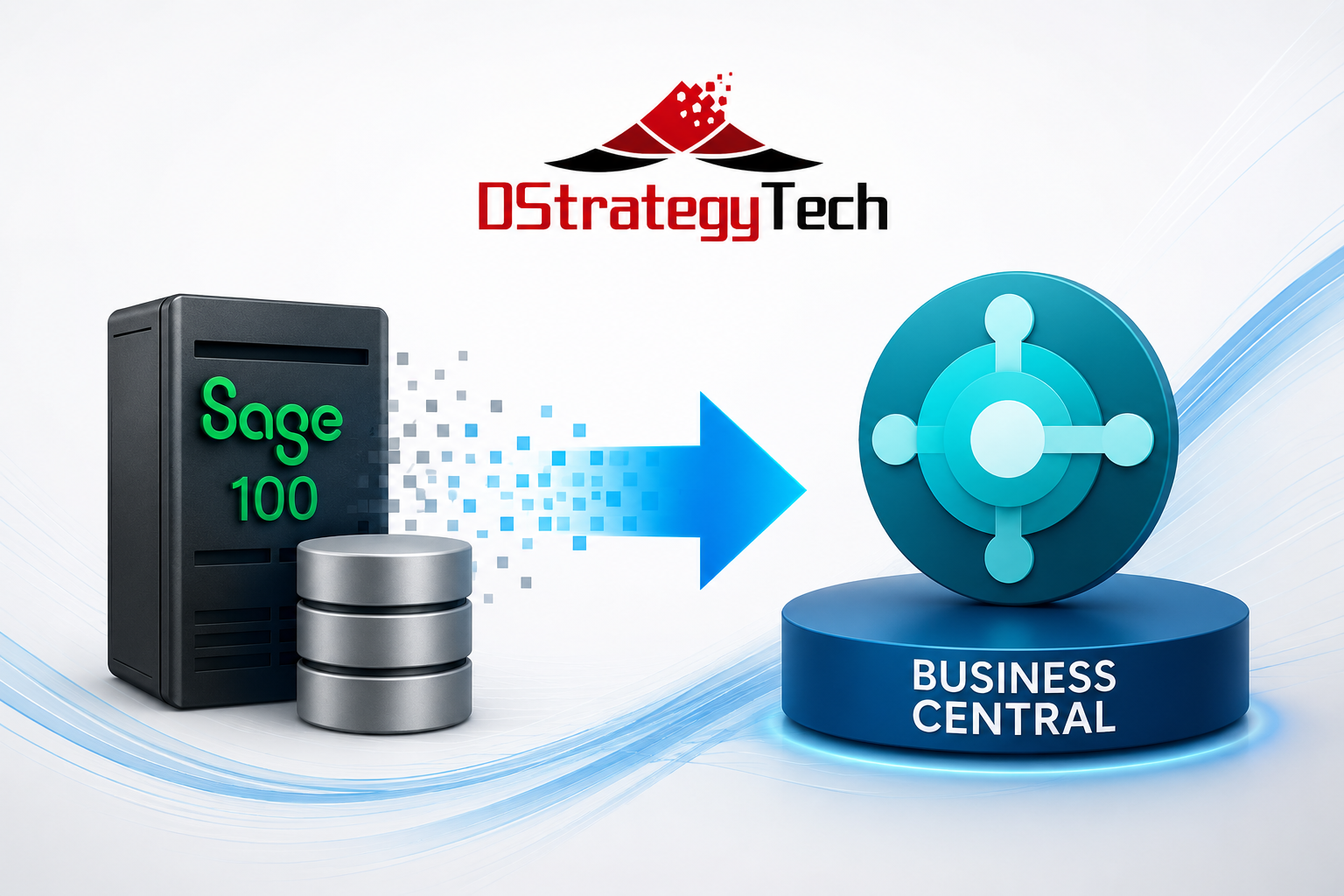
Sage 100 to Business Central: 6 Data Mapping Considerations
Moving from Sage 100 to Microsoft Dynamics 365 Business Central is not simply a matter of exporting tables from one ERP and importing them into another.
Both platforms manage familiar business concepts—customers, vendors, items, sales orders, purchase orders, inventory, and financial transactions—but they organize and post that information differently.
That makes data mapping one of the most important parts of a Sage 100 to Business Central migration.
The goal should not be to find a Business Central field for every Sage 100 field. The goal is to understand what the data means to the business and determine how that information should be represented in Business Central.
Here are six areas to consider.
1. Start With Business Entities, Not Database Tables
A table-to-table mapping can look straightforward at first.
A Sage 100 customer becomes a Business Central customer. A vendor becomes a vendor. An item becomes an item.
But the details matter.
Customer records may include payment terms, salesperson assignments, tax information, pricing structures, credit limits, custom fields, and reporting classifications. Business Central may represent or use some of those attributes differently.
Instead of beginning with:
Sage table → Business Central table
Start with:
Business concept → current Sage usage → Business Central design → migration rule
This approach also helps identify data that no longer needs to move.
2. Revisit the Chart of Accounts and Dimensions
The chart of accounts deserves particular attention.
Organizations may have built reporting requirements into their existing account structures over many years. Departments, locations, business units, or other reporting attributes may be represented through account segments or related structures.
Business Central uses G/L Accounts and Dimensions to provide financial and analytical context.
That means an organization should not automatically reproduce its existing Sage 100 account structure in Business Central.
For example, instead of maintaining numerous account combinations to represent revenue by department or location, Business Central dimensions may allow the organization to maintain a cleaner G/L structure while capturing the analytical attributes separately.
The migration is therefore an opportunity to ask:
- What belongs in the chart of accounts?
- What should become a dimension?
- Which reporting structures are still required?
- How will this design support future Power BI reporting?
Getting this design right can have a major impact on reporting long after the migration is complete.
3. Understand Business Central’s Ledger Model
Historical financial data requires more than a simple transaction mapping.
Business Central uses interconnected ledger structures to represent posted activity.
For example, customer-related transactions can involve Customer Ledger Entries, Detailed Customer Ledger Entries, and G/L Entries. Similar structures exist for vendors and other areas of the application.
This is important because a historical invoice is more than an invoice number, date, customer, and amount. Its business meaning may also include payments, applications, adjustments, posting information, and financial history.
The migration team therefore needs to determine how much historical transactional detail should exist natively in Business Central and how much should remain available through an archive or reporting solution.
Not every historical Sage 100 record necessarily needs to become an equivalent posted Business Central transaction.
4. Pay Special Attention to Inventory and Cost
Inventory is another area where conceptual mapping is more important than field mapping.
Business Central uses Item Ledger Entries to record inventory quantities and movements and Value Entries to capture the associated cost and value information.
That architecture supports Business Central’s inventory costing and cost-adjustment processes.
During a Sage 100 migration, teams should carefully review:
- Items and item categories
- Units of measure
- Locations
- Inventory quantities
- Costing methods
- Standard and actual costs
- Lot or serial tracking requirements
- Open purchase and sales transactions
- Beginning inventory valuation
The objective is not simply to make the opening inventory quantity match.
Quantity, value, and the general ledger need to reconcile together.
That makes inventory one of the areas where migration testing and financial validation are especially important.
5. Decide How Much History Really Needs to Move
A common migration question is:
How many years of Sage 100 history should we migrate?
More is not automatically better.
Organizations may want years of detailed transaction history available in Business Central, but recreating extensive historical activity can increase migration complexity without creating equivalent business value.
A better approach is to classify information into categories:
Master data
Customers, vendors, items, accounts, and other information required to operate the new system.
Open transactions
Open receivables, payables, sales orders, purchase orders, inventory, and other transactions required for continuity.
Opening balances
Financial and operational balances needed for the Business Central starting point.
Historical information
Prior invoices, orders, transactions, and supporting details needed primarily for reference, reporting, audit, or analysis.
Some history may belong in Business Central. Other history may be better retained in a secure archive, data platform, or reporting environment.
The right answer depends on business, reporting, regulatory, and operational requirements.
6. Design the Mapping for Reporting, Integration, and AI
Data migration should not end with the ERP go-live.
Business Central increasingly participates in a broader Microsoft environment that can include Power BI, Power Platform, Microsoft Fabric, Microsoft 365, Copilot, and AI agents.
That makes today’s data-model decisions important to tomorrow’s analytics and automation.
Consider a company that wants to analyze profitability by:
Customer + Product + Location + Business Unit
If those concepts are mapped inconsistently during migration, creating reliable Power BI reporting later becomes harder.
The same principle applies to AI.
An AI agent may eventually need to understand the relationship between a customer, an order, an invoice, an item, a cost, a location, and the resulting financial transaction.
AI does not eliminate the need for good ERP data architecture.
It increases its importance.
Data Mapping Is Business Mapping
A successful Sage 100 to Business Central migration should therefore look more like this:
Sage 100 business data
→ Understand business meaning
→ Design the Business Central model
→ Define transformation and migration rules
→ Validate operational and financial results
→ Enable reporting, automation, and future AI scenarios
The technical mapping is still important. Fields, data types, keys, relationships, transformations, and migration tools all matter.
But those decisions should follow the business design—not define it.
A customer is more than a customer table. An inventory transaction is more than a quantity. And a financial transaction is more than a debit and credit.
When organizations approach a Sage 100 to Business Central migration from that perspective, the result can be more than a successful ERP go-live.
It can provide a cleaner data foundation for Business Central, Power BI, integrations, automation, and future AI initiatives.
Planning a Sage 100 to Business Central Migration?
DStrategyTech helps SMBs evaluate Business Central modernization, data migration, integration, reporting, and Data & AI requirements.




Related Posts